Projects
Projects are top-level containers that organize image categories and models.
Whenever you create an image category, upload a model, or train a model, you must select a project.
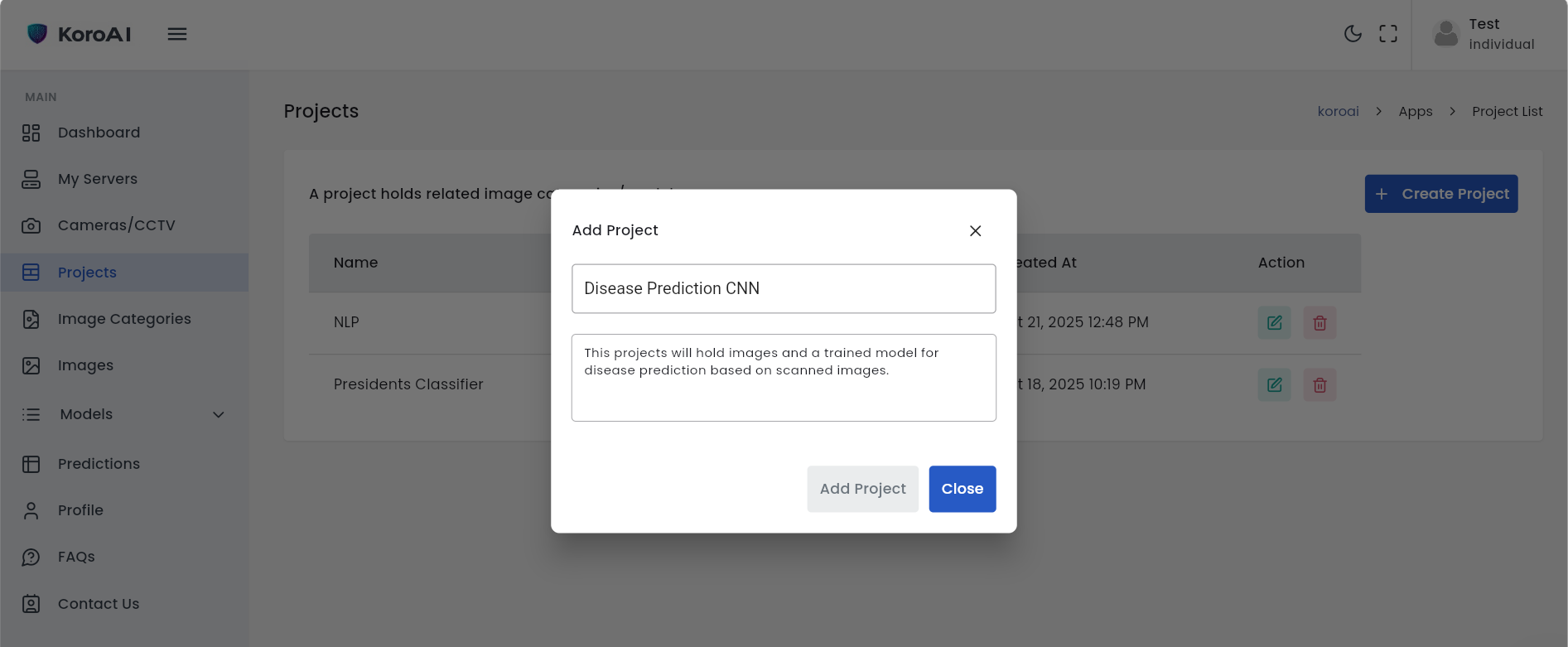
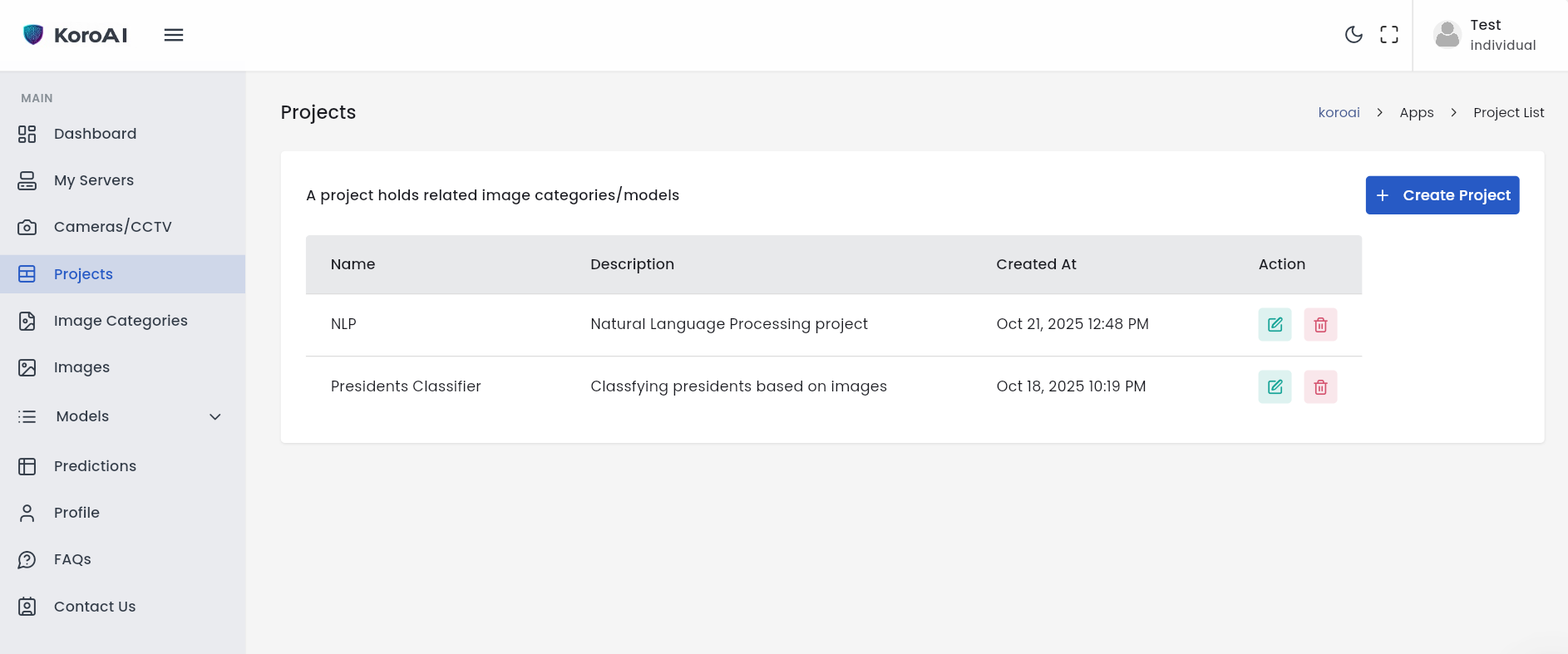
Image Categories
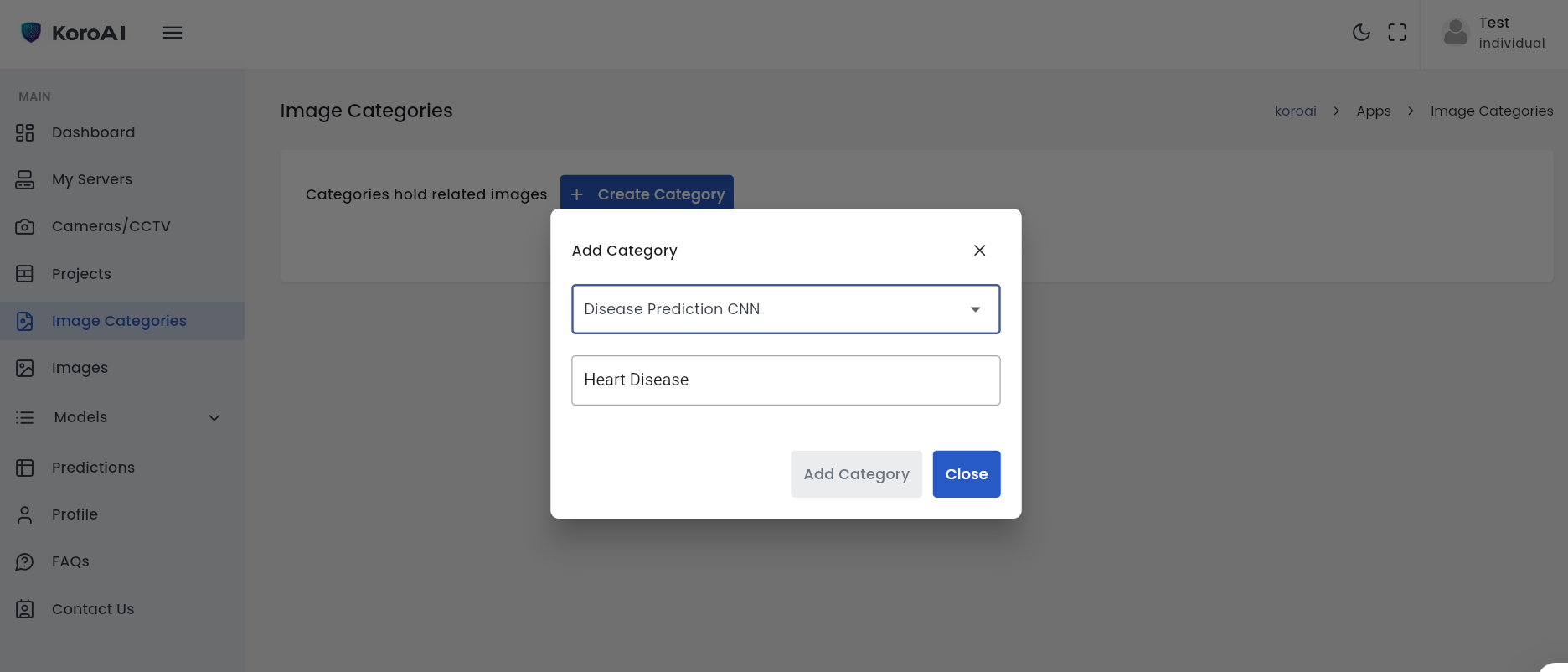
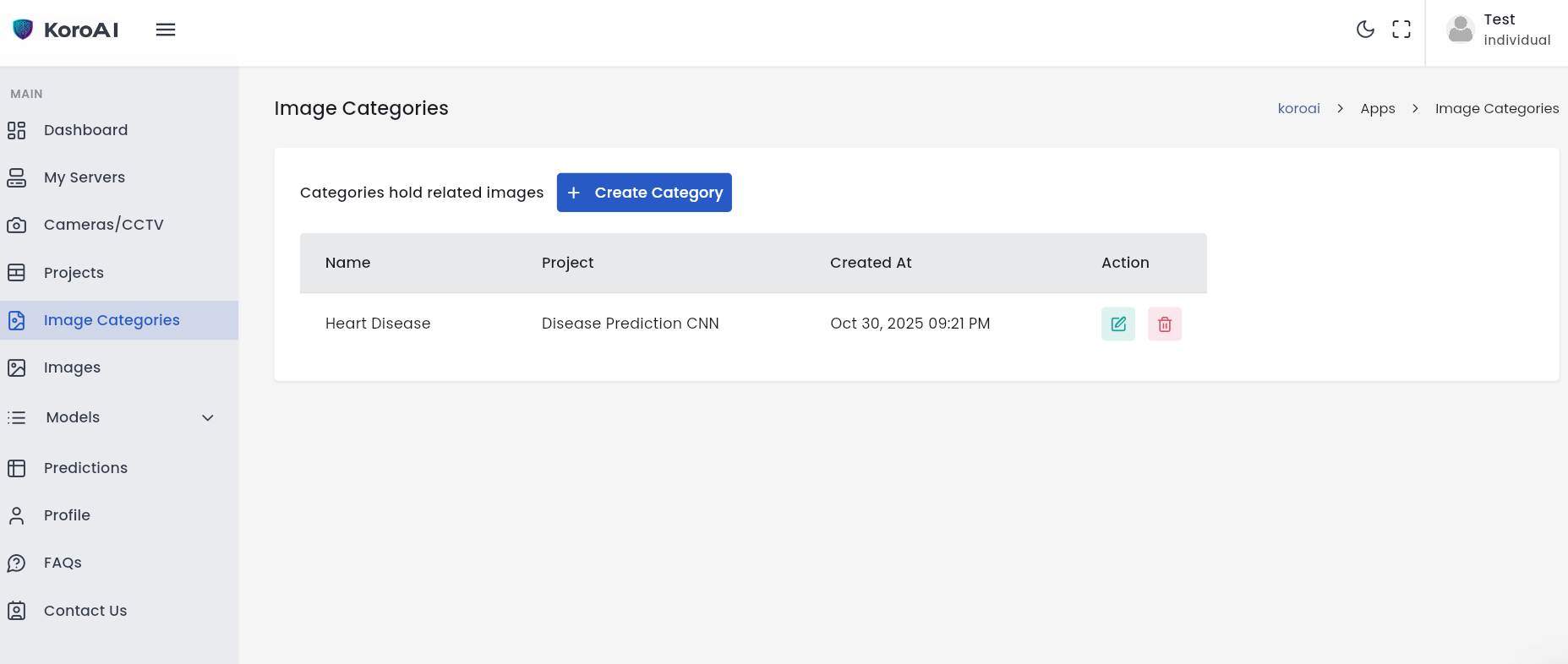
Categories help classify images by type, label set, class, or use-case (e.g., vehicles, diseases) for training image models.
Images
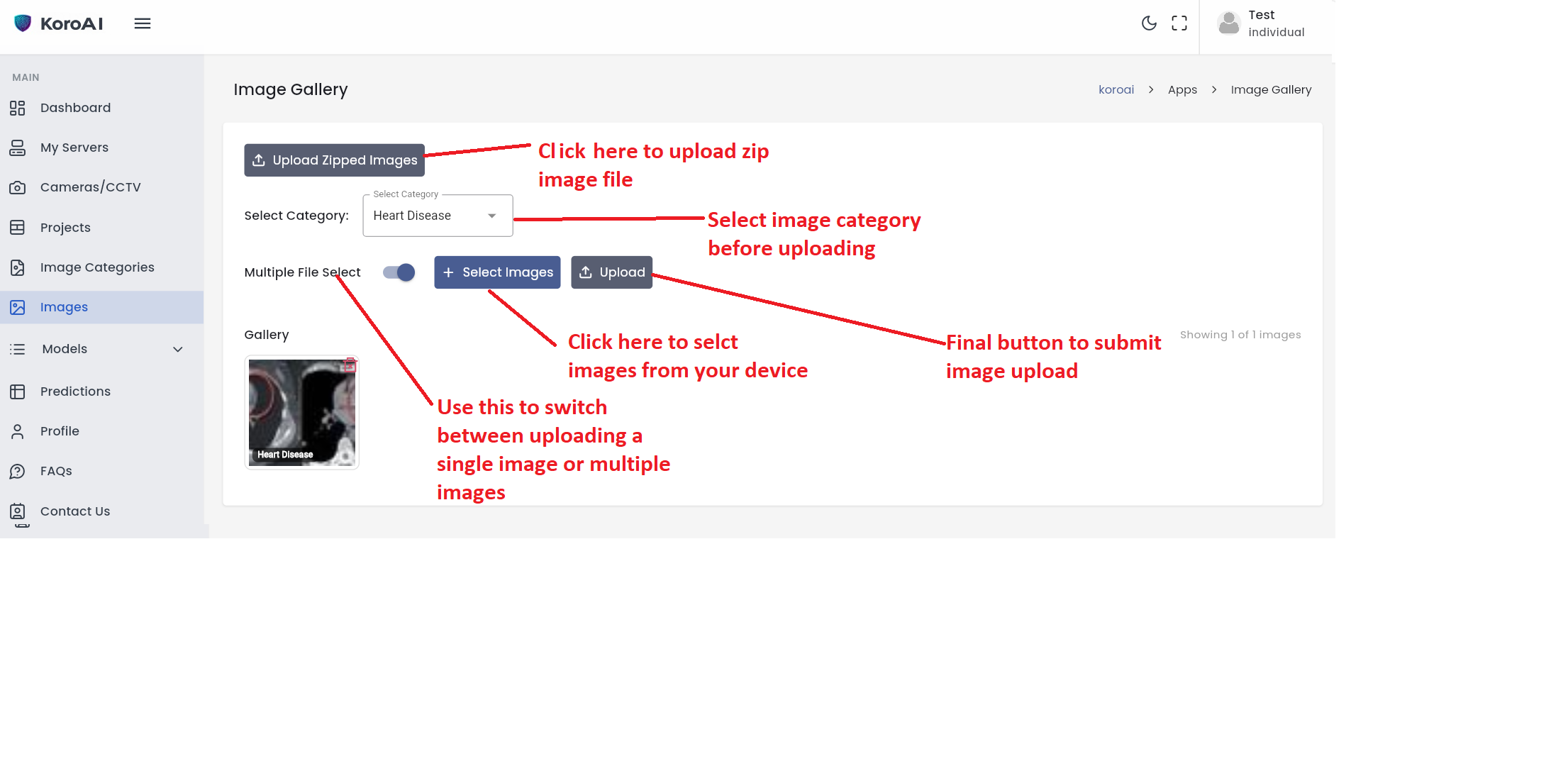
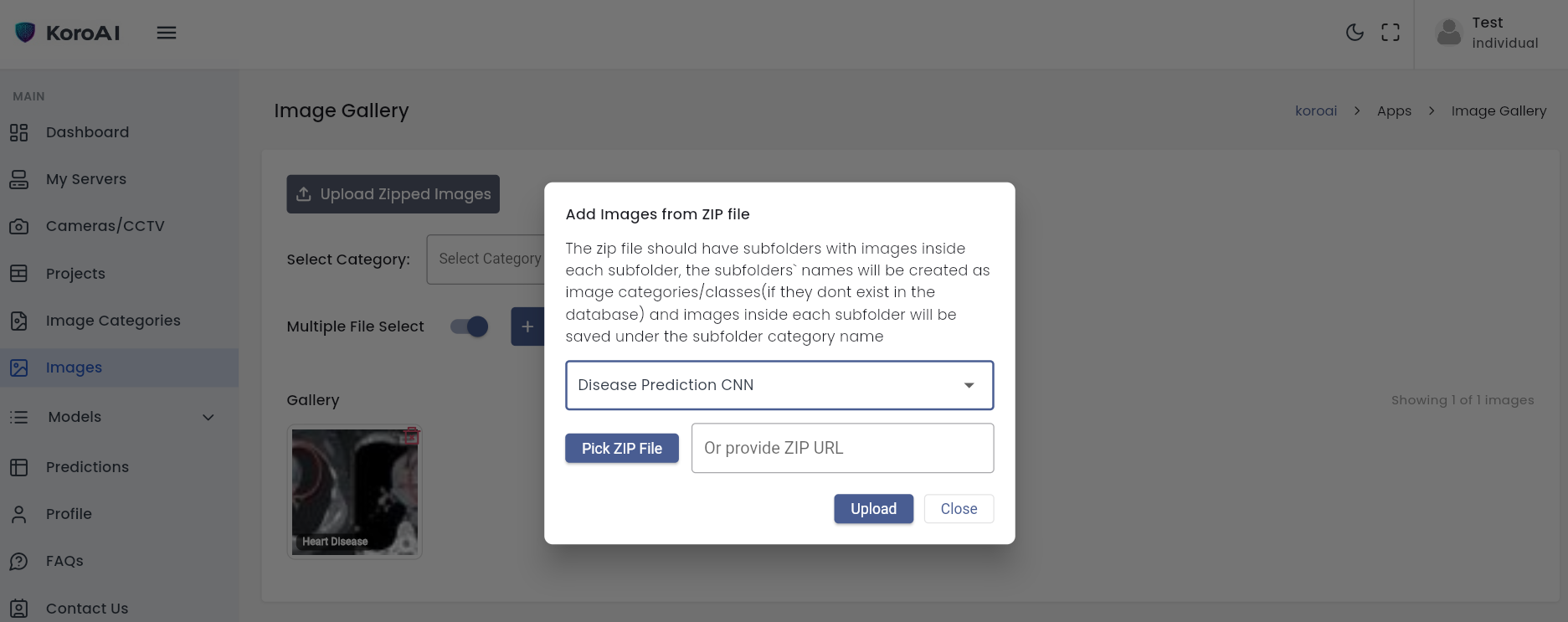
Upload images under each category. Supports single, multiple, and ZIP uploads.
For ZIP files, ensure subfolders correspond to image categories and each subfolder contains the images.
Models
Models are grouped into three categories:
The system already has open source models to get you started quickly with training, fine-tuning and prediction.
- Image Models: Models trained on images for classification.
- Tabular Models:Scikit-learn models trained on tabular data. The CSV should have one column as prediction/target while the rest of the columns should be feature columns.
- Text Models: Hugging Face models for tasks like speech recognition, text classification, text generation, text summarization, question answering image generation and more.
You can train/fine tune the models for prediction.
Prediction Screen
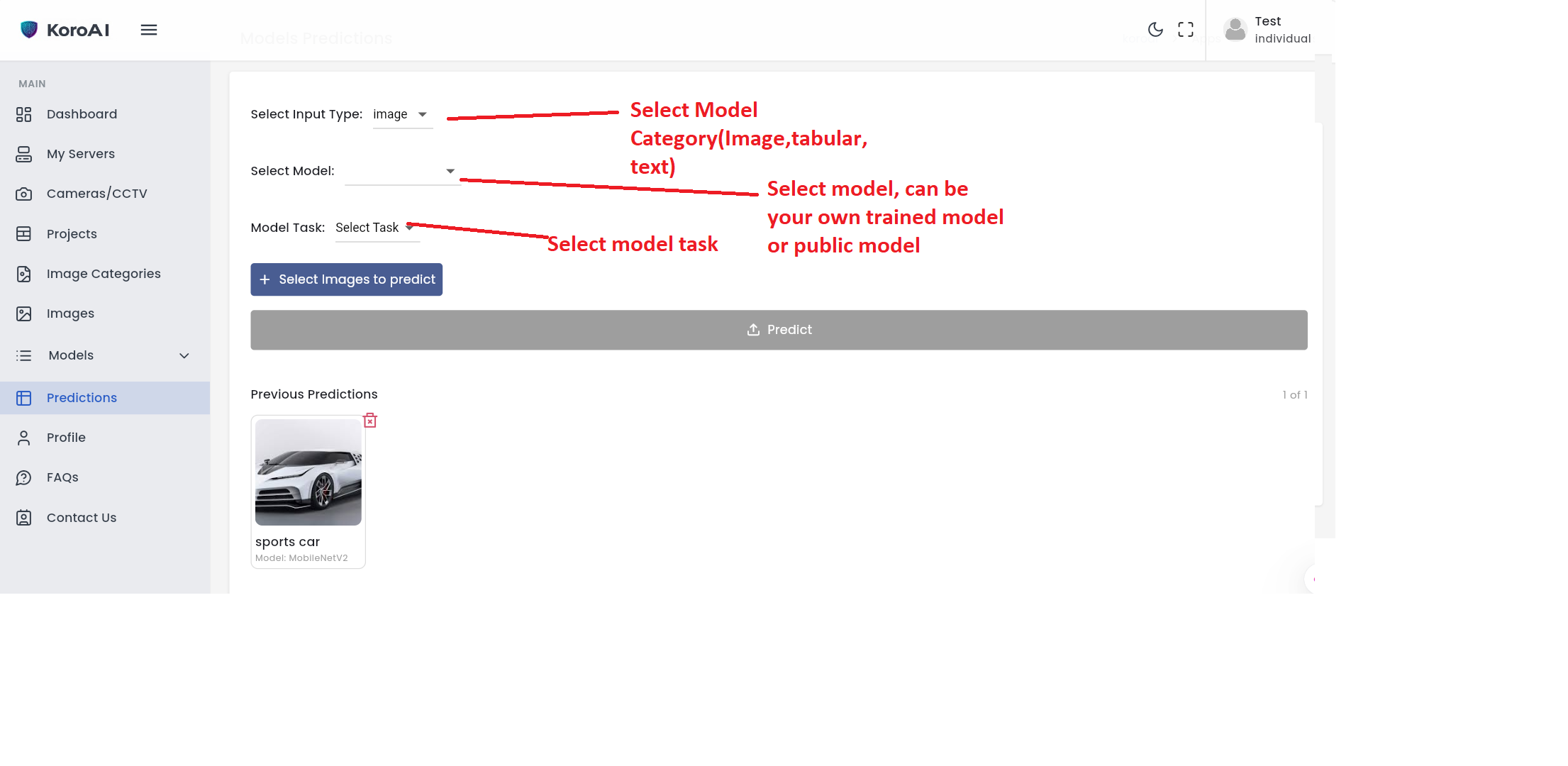
Run single or batch predictions using a deployed model.
Both public and your own models are available for prediction.
Predictions are grouped into three categories:
Prediction inputs and results depend on the model type:
- Image: Upload images to generate predictions.
- Tabular: A form will display all columns except the target column for prediction.
- Text: Hugging Face models process input text to predict based on the trained task.
Select the model’s task before predicting.
Task applications
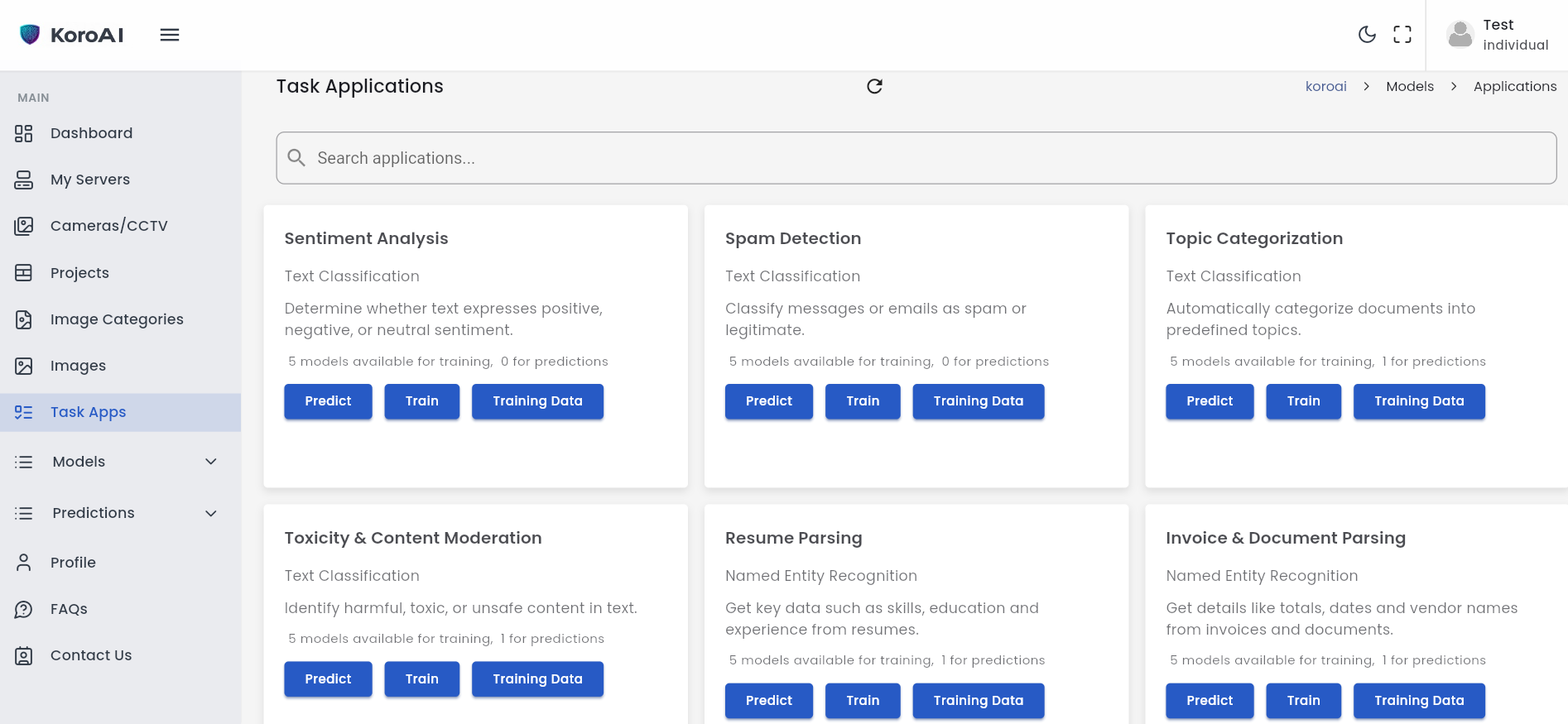
Task applications are small applications that you can train models on to accomplish a certain task.
You can either use our pretrained models or train your own models for prediction.
Account Types
Our system allow creating two types of accounts i.e individual or business
Individual accounts are personal accounts and managed by one person.
Business accounts allow businesses to add more than one user. Users are categorized into roles. Each role has permissions.
Businesses can create roles, assign those roles permissions and assign roles to users. Users can only perfon actions based on their role permissions.
How to Train an Image Classification Model
Step-by-step guide for training an image classification model using a project dataset.
- Create a project.
- If you have a ZIP of images, go to Images → Upload Zipped Images. Subfolders will become categories automatically.
- If images are not zipped, create image categories manually, then upload images under each category.
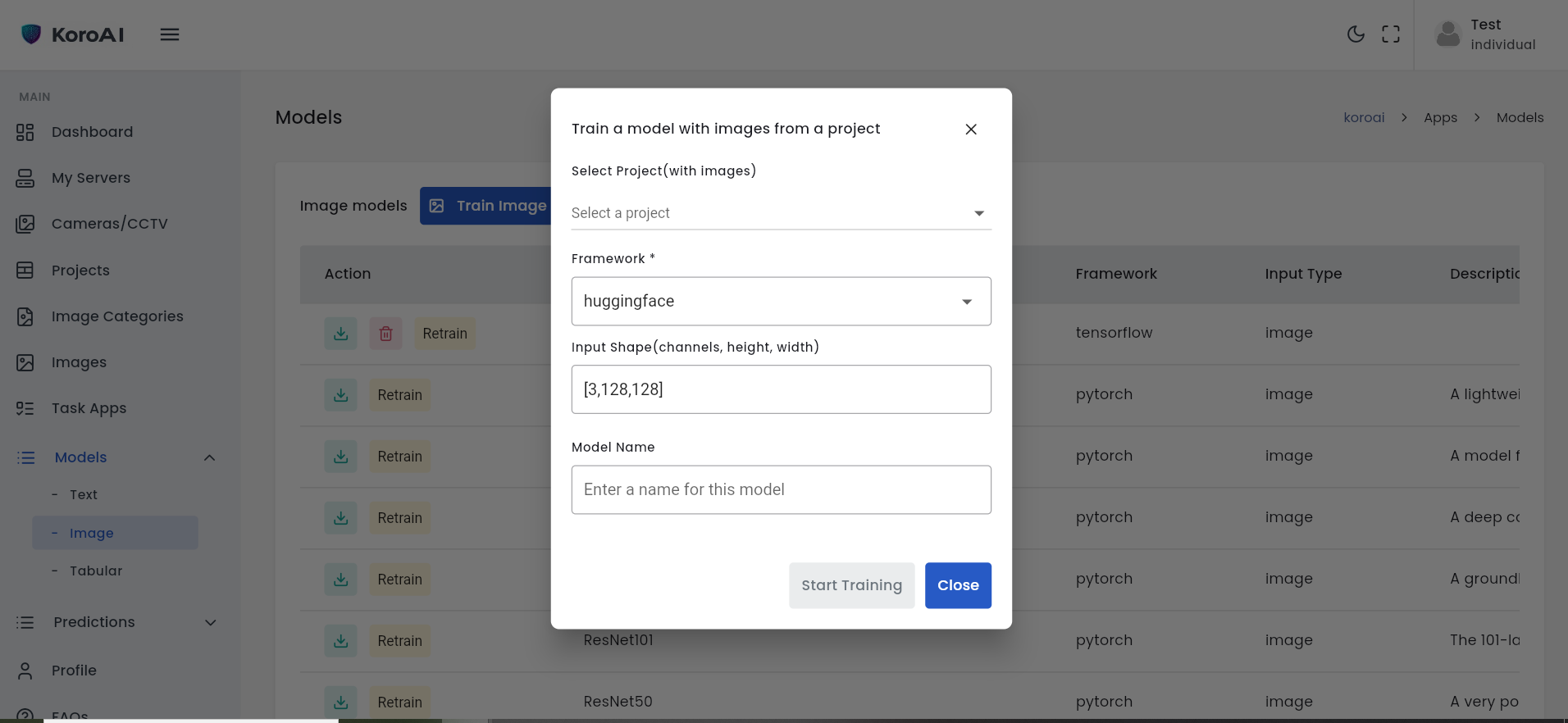
- After uploading images, go to Models → Image.
- Click 'Train Image Classification Model'.
- Select Project, Framework, Model Name, and Input Shape (Channels, Height, Width).
- Click 'Start Training'. Training duration depends on image count.
- After training, make predictions via the Predictions menu.
How to Train a Scikit-learn Supervised Model
Use a CSV dataset with a target column and feature columns to train a predictive model.
- Create a project.
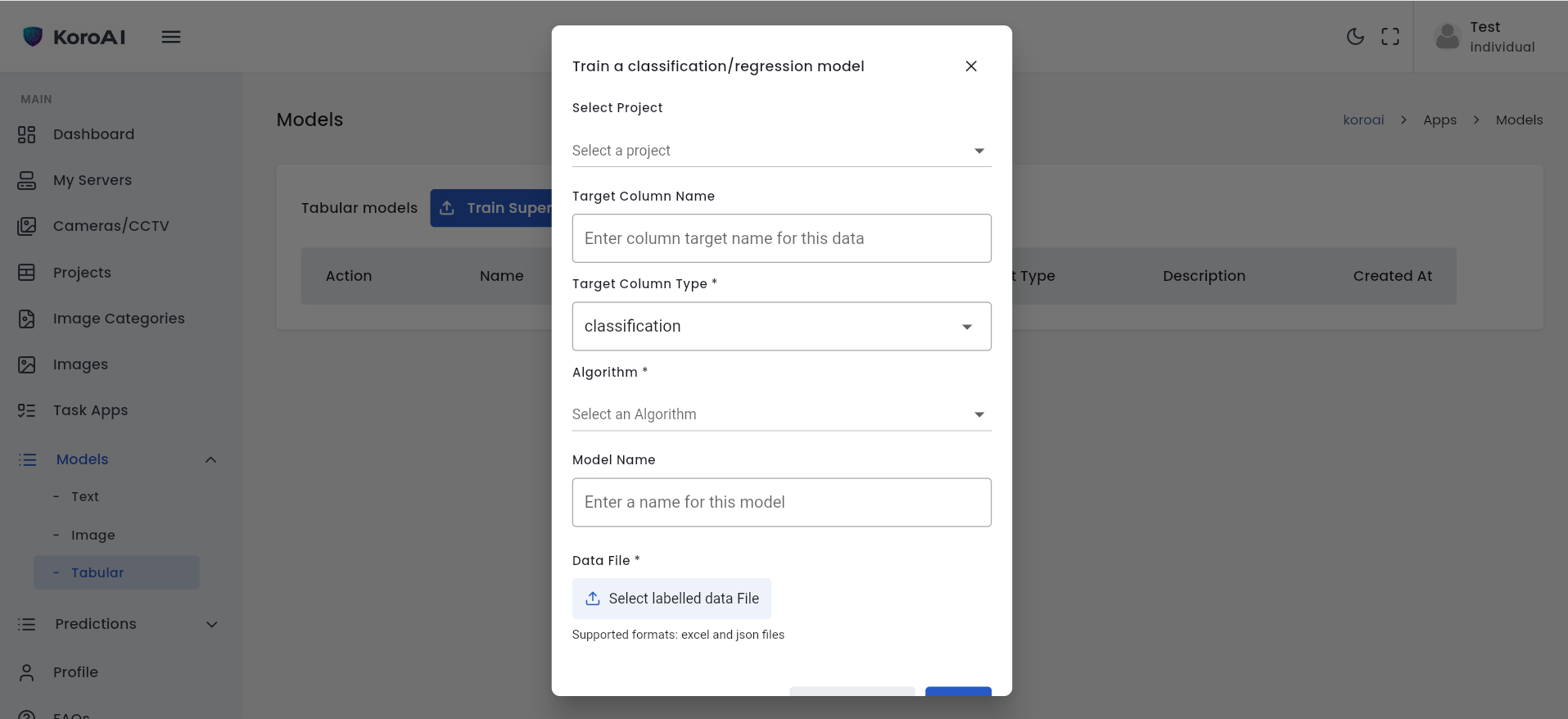
- Navigate to Models → Tabular.
- Click 'Train Supervised Model'.
- Select Project, Target Column, Model Name, Algorithm, CSV File, and Target Type (Classification/Regression).
- Click 'Start Training'. Training time depends on dataset size.
- After training, predict using this model via the Predictions menu.
How to add your own server
When you add your own server, images and models will be stored in your server.
Training of models and predictions will also be done on your server.
This gives you more control over your data.
To add a server, click on my servers, when the page loads, click on 'How to Configure a server'.
You will be given instructions on how to install KoroAI agent on your server
How to configuare Camera agent on your server.
You can install our camera or CCTV agent on your server so that the agent can help with classification and object detections of images from your Cameras/CCTV
All the data stays on your server.
To configure the agent, click on Cameras/CCTV menu, when the page loads, click on 'How to Configure a Camera Agent'.
You will be given instructions on how to install KoroAI agent on your server
Contact Support
Need help? Reach out to our support team.
Email: info@koroai.neta.co.ke
Phone/WhatsApp: +2547 829 476 50